I have InSync installed on my Linux Mint 22.2 machine and it seems to be working great. But thinking forward, I was curious as to the proper process to replace a local drive that is being synced to the cloud? I wouldn’t want inadvertent data loss because I did something wrong!
For example, let’s say I have a drive that is beginning to fail or want to upgrade to a larger drive.
Do I manually copy the existing drive contents to the new drive, either by doing drive-to-drive transfer, or by downloading the files from the cloud to the new drive? And then, do I need to update the synced drive/folder mappings for the new drive? I don’t want InSync to re-upload a ton of data, or InSync to delete the cloud data because the old drive(s) are gone.
If it matters, the drives I have synced are mounted under /mnt as random values, like “/mnt/ABCDEF123456”.
Is there a config file for InSync where I can simply replace the /mnt name with the new drive?
Thanks for the answer! After a quick glance, I don’t think it does answer my question. Either that, or I completely misunderstood how to set this whole thing up. I plan to dig a bit more when I have some time this weekend.
I might even create a temporary throw-away VM to play around with scenarios, just to get a better understanding of how it works. I’ve already found the SQLite database where the drive mappings and other settings are stored. I just want to make sure I have it clear in my head before a hardware failure.
Thus far, the program has been working fine. InSync has been syncing local and cloud files quickly no matter where they were modified (local vs in cloud).
OK, so I spent a little time looking at that link and I don’t think it applies to my question. Maybe I’m just being stupid here, so please bear with me.
First, a little info on my setup:
Everything I want synced goes to the Google cloud folder “HOME_SYNC”.
My local base folder is in “/home/BrianG/Insync/[redacted]@gmail.com/Google Drive/”, but there is nothing in there I am syncing.
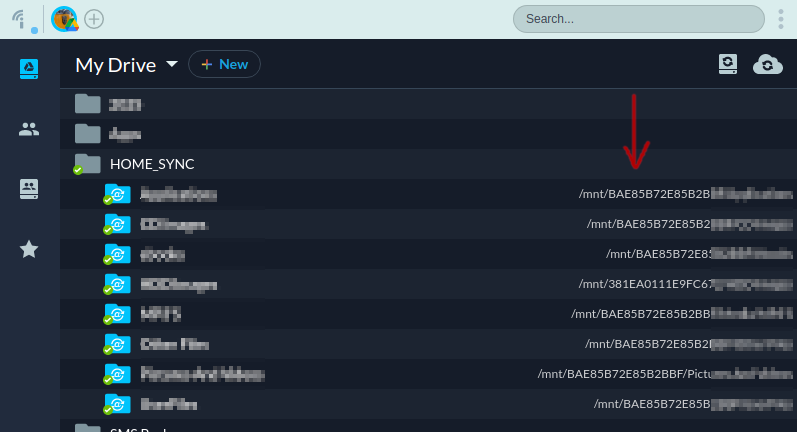
Using LLS > 2-Way Sync, I added several directories from other different drives (see arrow in my pic)
If one of the drives (not one where my base folder is) is faulty, how would I replace the bad drive with a new one?
I would think I would have to update the drive mapping somehow for all the drive/folders in my synced folder list (the ones in “/mnt/ABC123”)?
Otherwise, how does Insync know how to sync, and would it just delete all my cloud files since the old faulty drive is now gone?
What I think I would have to do is:
Click “Unsync” on the drive(s) I want to replace. If I’m not mistaken, this retains the files in the cloud; it just stops syncing from my local drive to the cloud anymore.
Exit the Insync application.
Copy the data from the current drive to the new drive.
Remove the old drive.
Start the Insync application and re-do the “LSS > 2-way sync” process for all the updated drive(s)/folder(s).
Let the application re-upload a ton of data to the cloud, or is the application smart enough to see the files are already there (or would it duplicate everything)?
Many thanks for describing your Insync setup in detail!
In case you got notified that I already responded, I had to delete my previous reply because I felt it was a bit confusing!
Instead, allow me to forward this to our Linux engineer to ensure that the steps will achieve what you’re looking for, should you need to replace a drive with a new one.
I know it’s been a while, but I just wanted to reply back here to confirm the process of switching drives is pretty painless. I just swapped a 1TB to a 2TB drive and needed to configure InSync to look at the new drive without having to redownload everything over the internet (~600GB).
Copy all the files from the old drive to the new drive.
Shut the PC down and physically remove the old drive and install the new drive.
Optional, and probably only applicable to SATA drives (not NVMe), but when you turn the PC back on, you may want to go into BIOS and disable hotswapping for the new drive. My motherboard tends to make all SATA drives hotswappable by default.
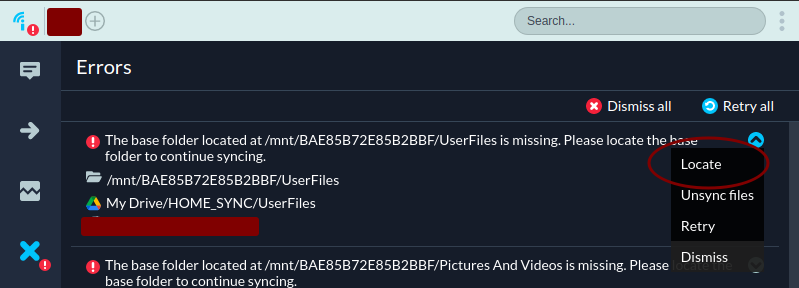
Once the PC boots back up and InSync starts, it should indicate a problem by a red exclamation. Just go into “Errors” section, click the little arrow at the right, click “Locate”, and then browse to the local folder where that data is stored. Repeat for all locations as needed.
After a minute or so, InSync should finish scanning all new locations and the red X’s will go away, and have a green checkmark.